Getting Started: Play & Practice Guitar Tabs
You'll learn the basics with a sample song: playing it back, adjusting the speed, repeating tricky passages and using the metronome. No sign-up, no installation.
Open Tabinator
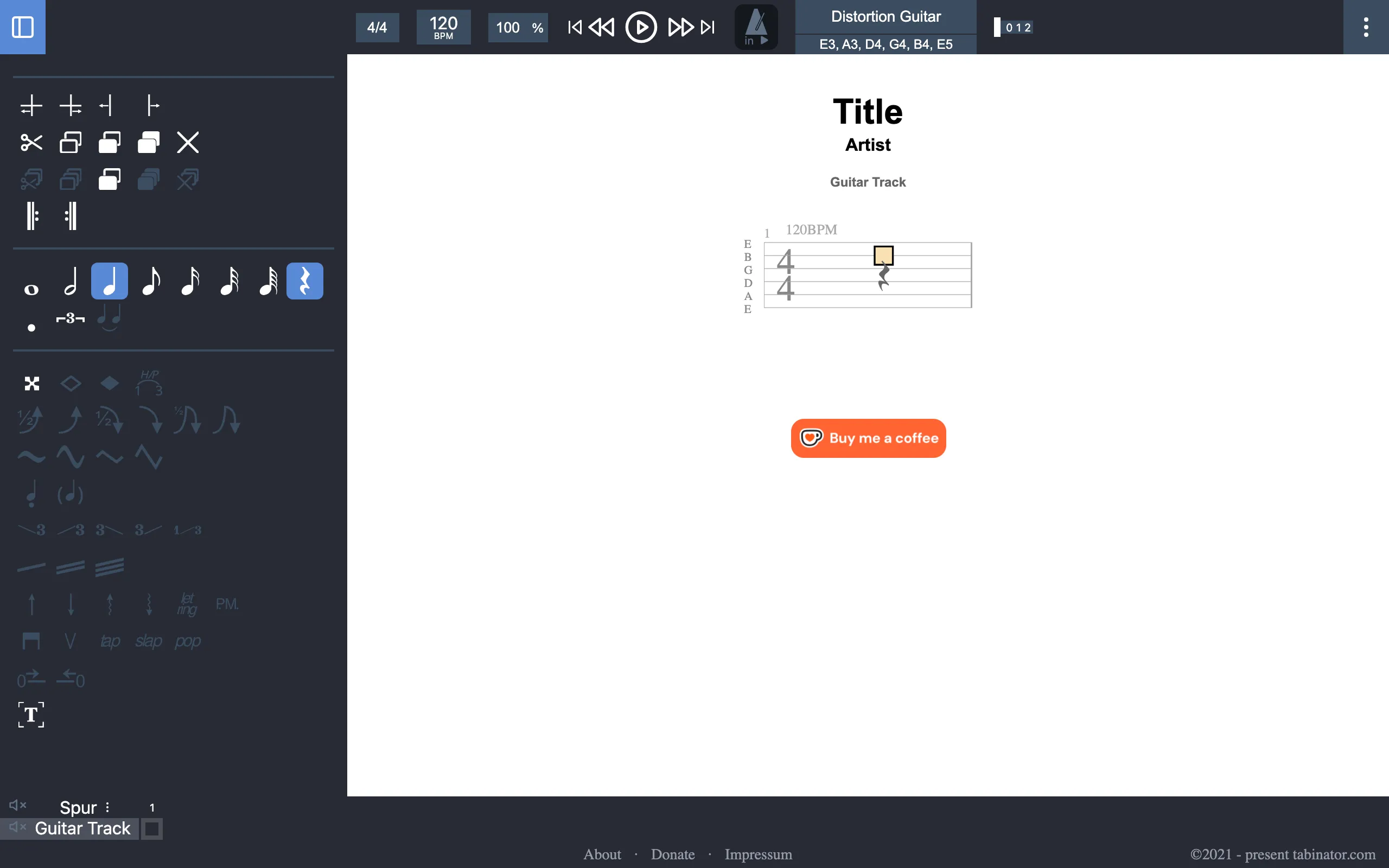
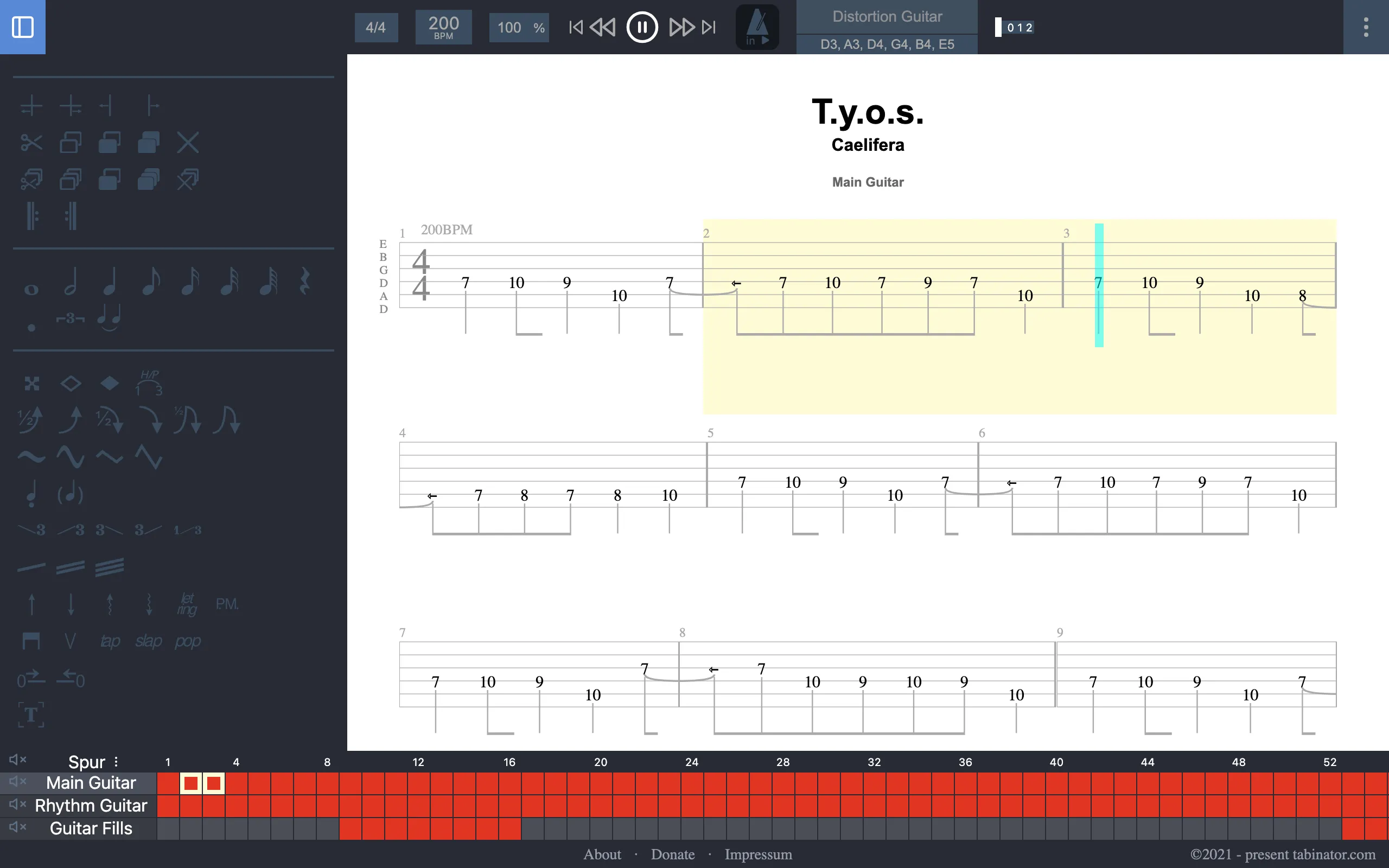
Open app.tabinator.com in your browser. The first time, you'll see an empty sheet. The toolbar is at the top, the workbench on the left and the tracks at the bottom.
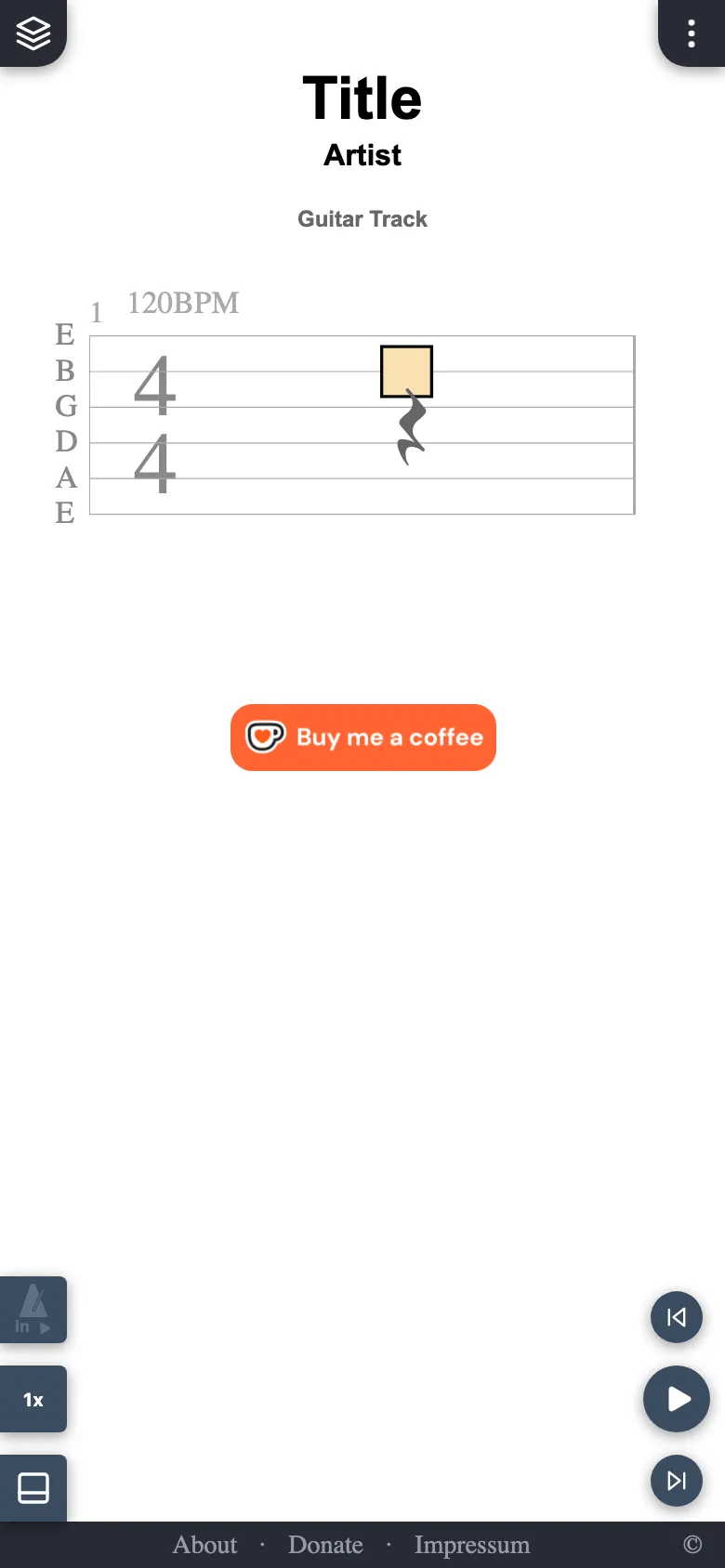
Open app.tabinator.com in your phone's browser. The first time, you'll see an empty sheet. The most important functions float as buttons along the edges of the screen.
Load a sample song
Click the three-dots menu in the top right corner. Among other things, you'll find “load example” there.
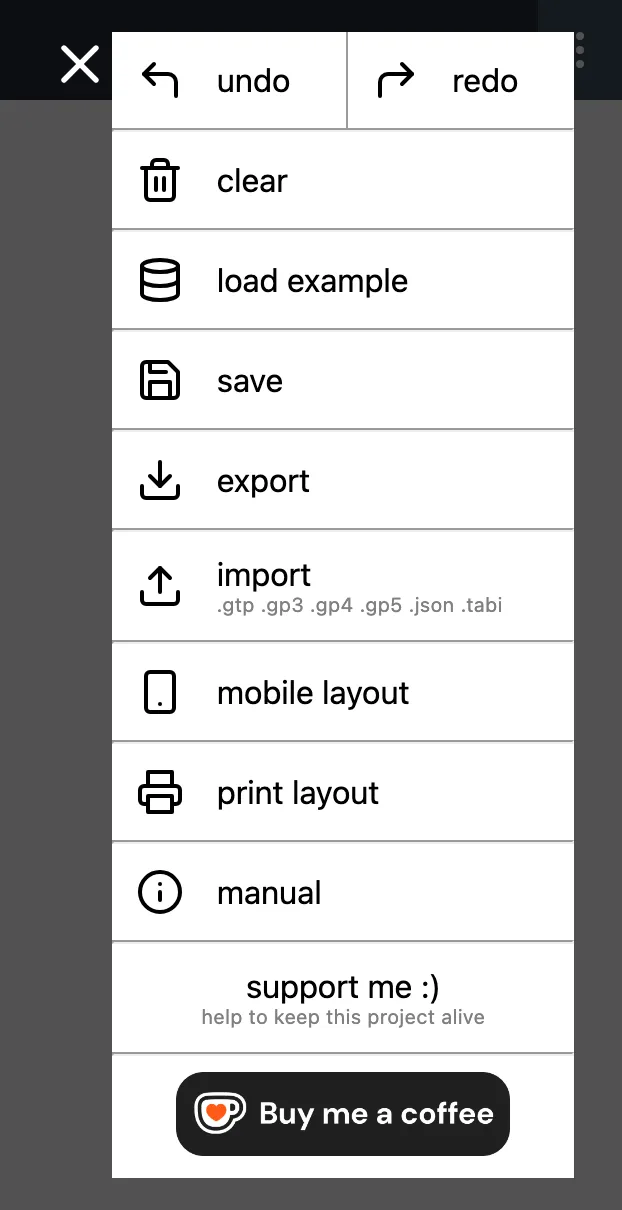
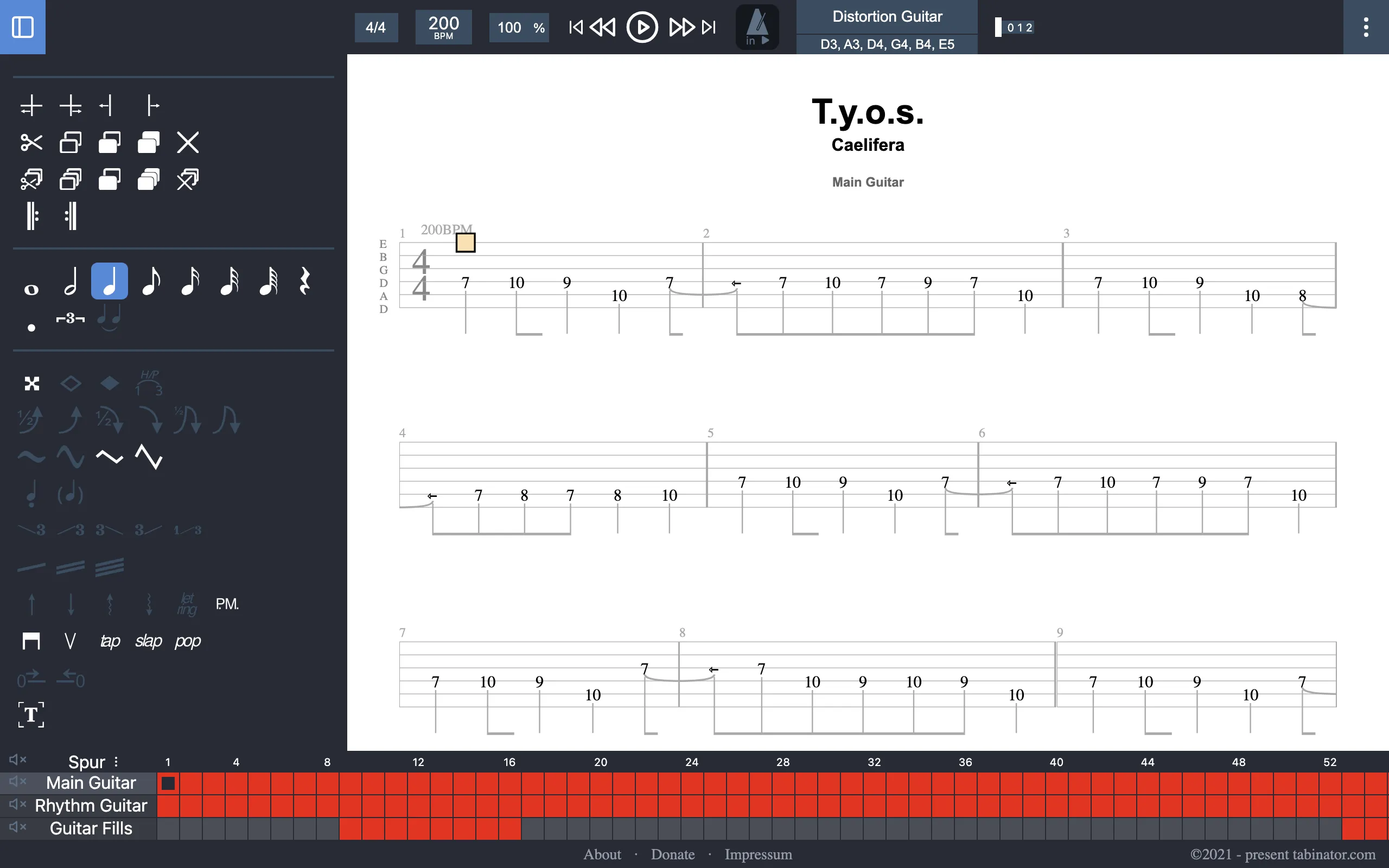
Click “load example”. A moment later, the sample song is loaded:
Tap the three-dots button in the top right corner. Among other things, you'll find “load example” there.
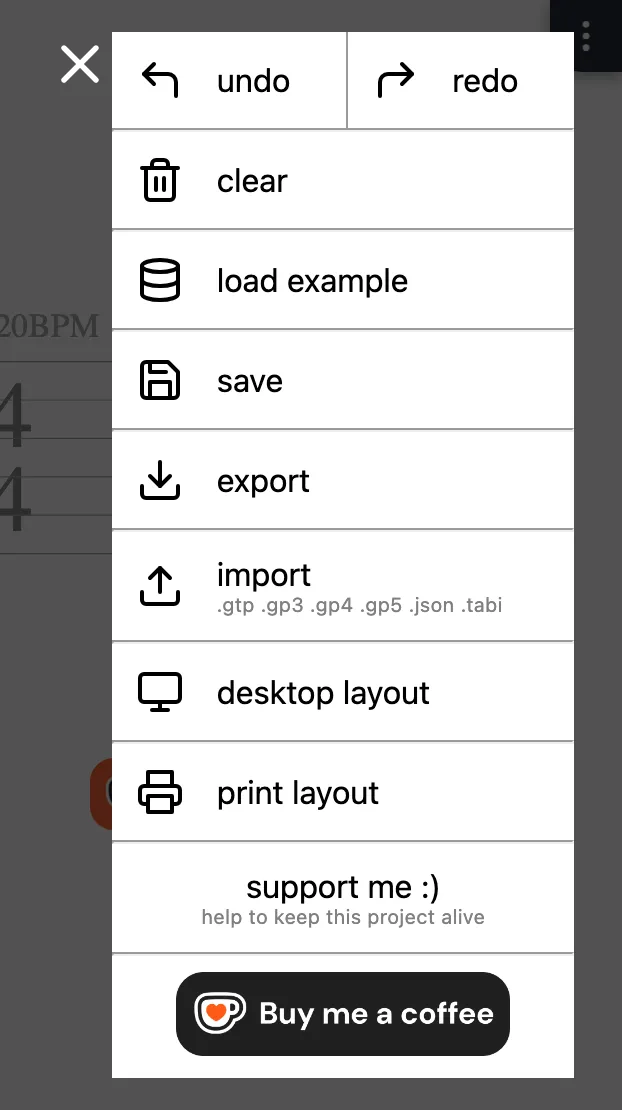
Tap “load example”. A moment later, the sample song is loaded:
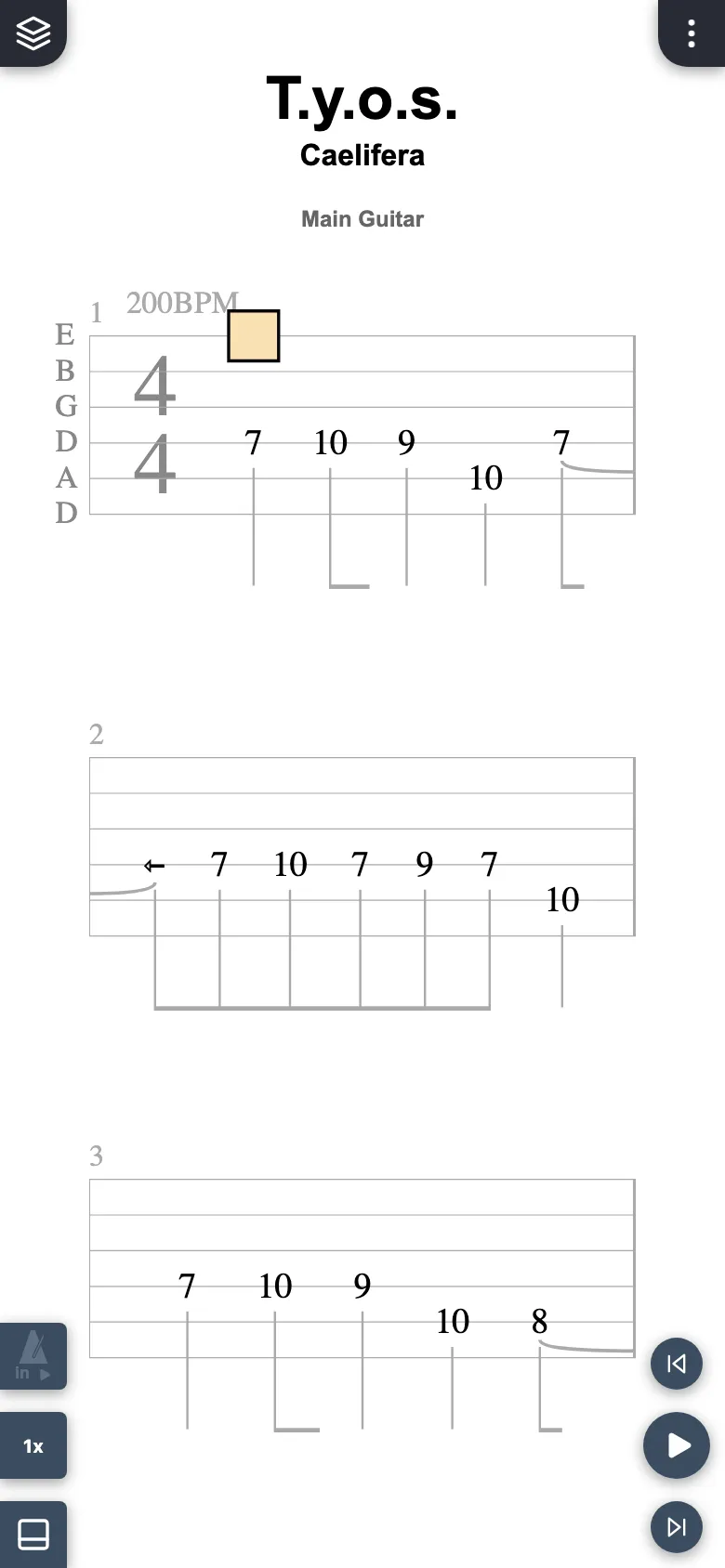
Switch tracks
The song has several tracks, e.g. “Main Guitar”, “Rhythm Guitar” and “Guitar Fills”. Click a track name in the track bar at the bottom to switch to it.
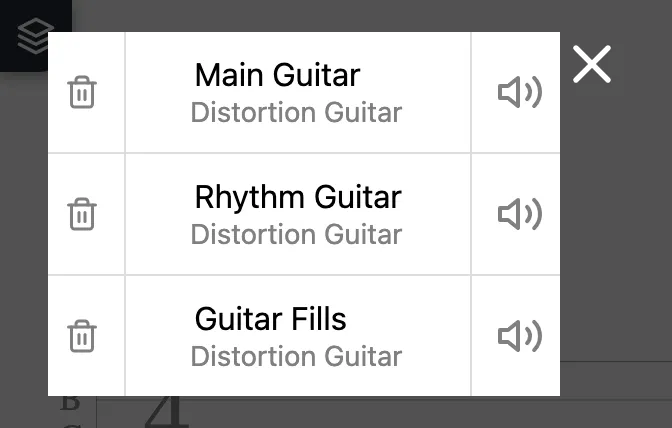
The song has several tracks, e.g. “Main Guitar”, “Rhythm Guitar” and “Guitar Fills”. Tap the button with the layers icon in the top left corner. A list of all tracks opens. Tap a track to switch to it.
Play & pause the song
Click the play button in the toolbar at the top or press the spacebar. The song starts playing and the cursor moves through the notes.
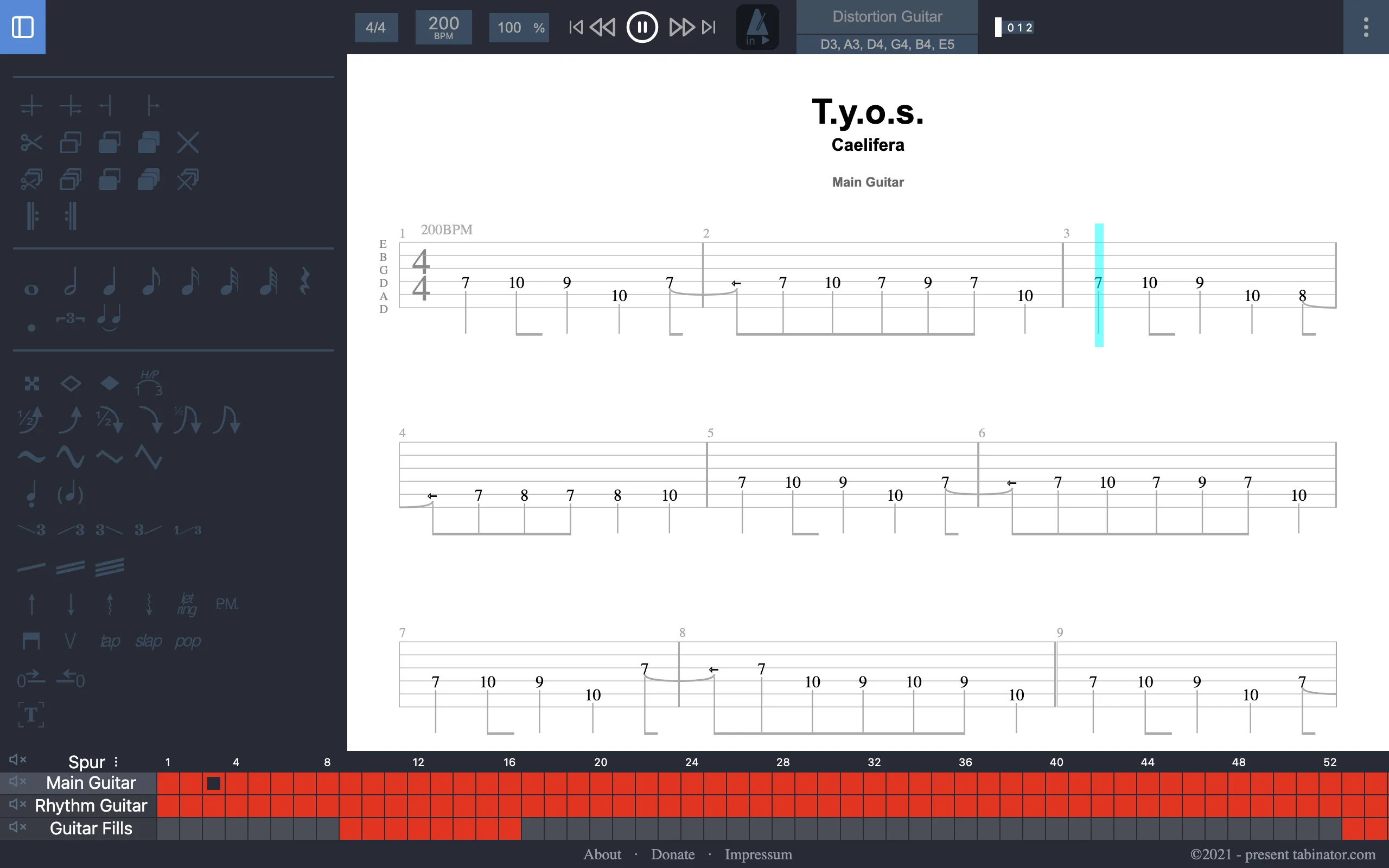
To pause, press the spacebar again or click the play button, which turns into a pause button during playback.
Tap the round play button in the bottom right corner. The song starts playing and the cursor moves through the notes.
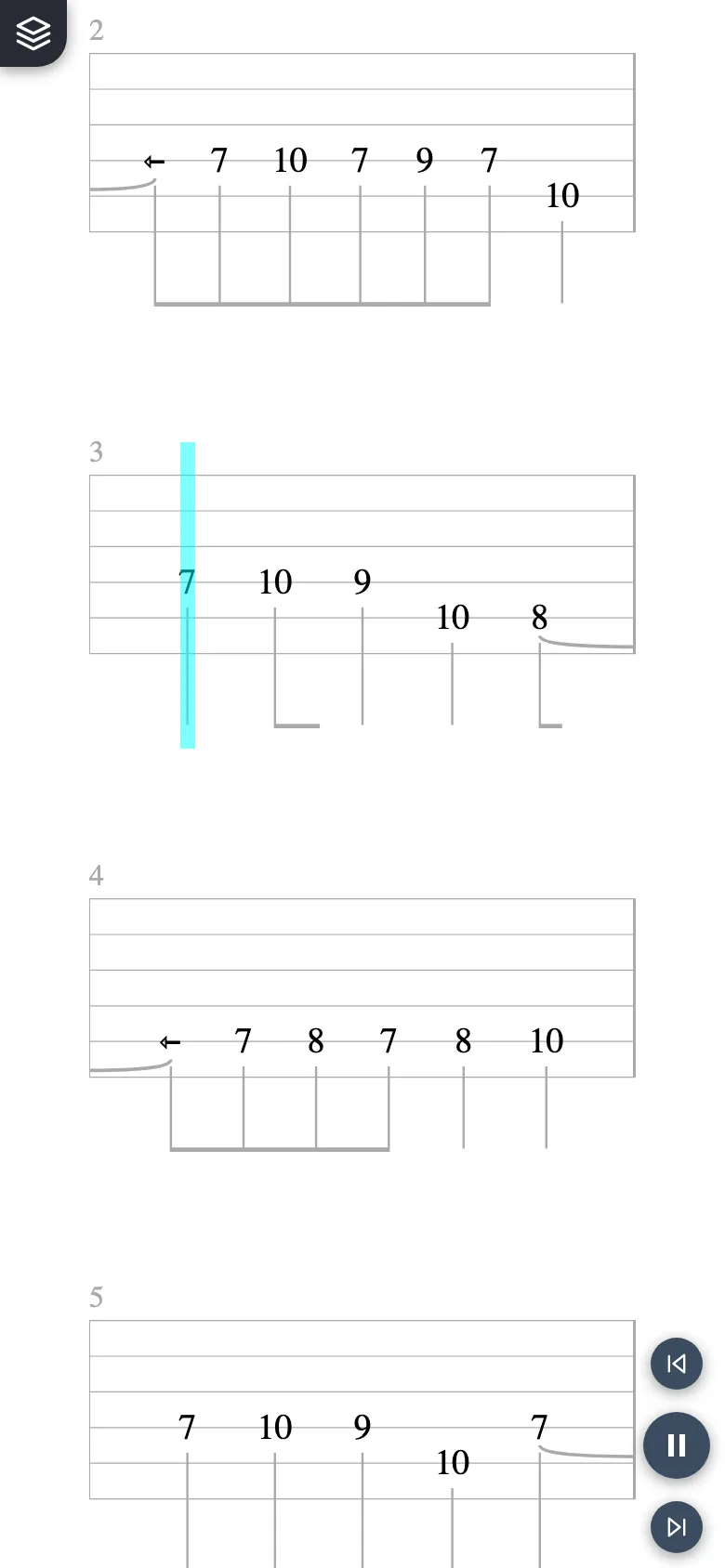
To pause, tap the button again – it turns into a pause button during playback. With a connected keyboard, the spacebar works too.
Adjust the playback speed
The playback speed lets you play a song slower (or faster). The BPM tempo of the song stays the same. Click the percentage field in the toolbar at the top and change 100 % to 80 %, for example.

The playback speed lets you play a song slower (or faster). The BPM tempo of the song stays the same. Tap the button showing “1x” on the bottom left. There you can choose from several speeds.
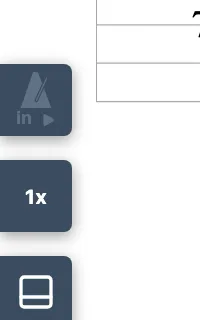
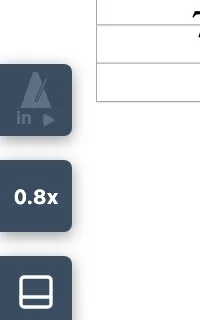
Pick 0.8x, for example. The button now shows the new speed:
Loop bars for practice
The best way to practice a tricky passage is in a loop. Start by selecting one or more bars: double-click a bar and extend the selection with Shift + left arrow or Shift + right arrow.
You can also press and hold the mouse button on a bar (long press). The selection then starts at that bar and extends to the bar you click next. Here, bars 2 and 3 are selected:
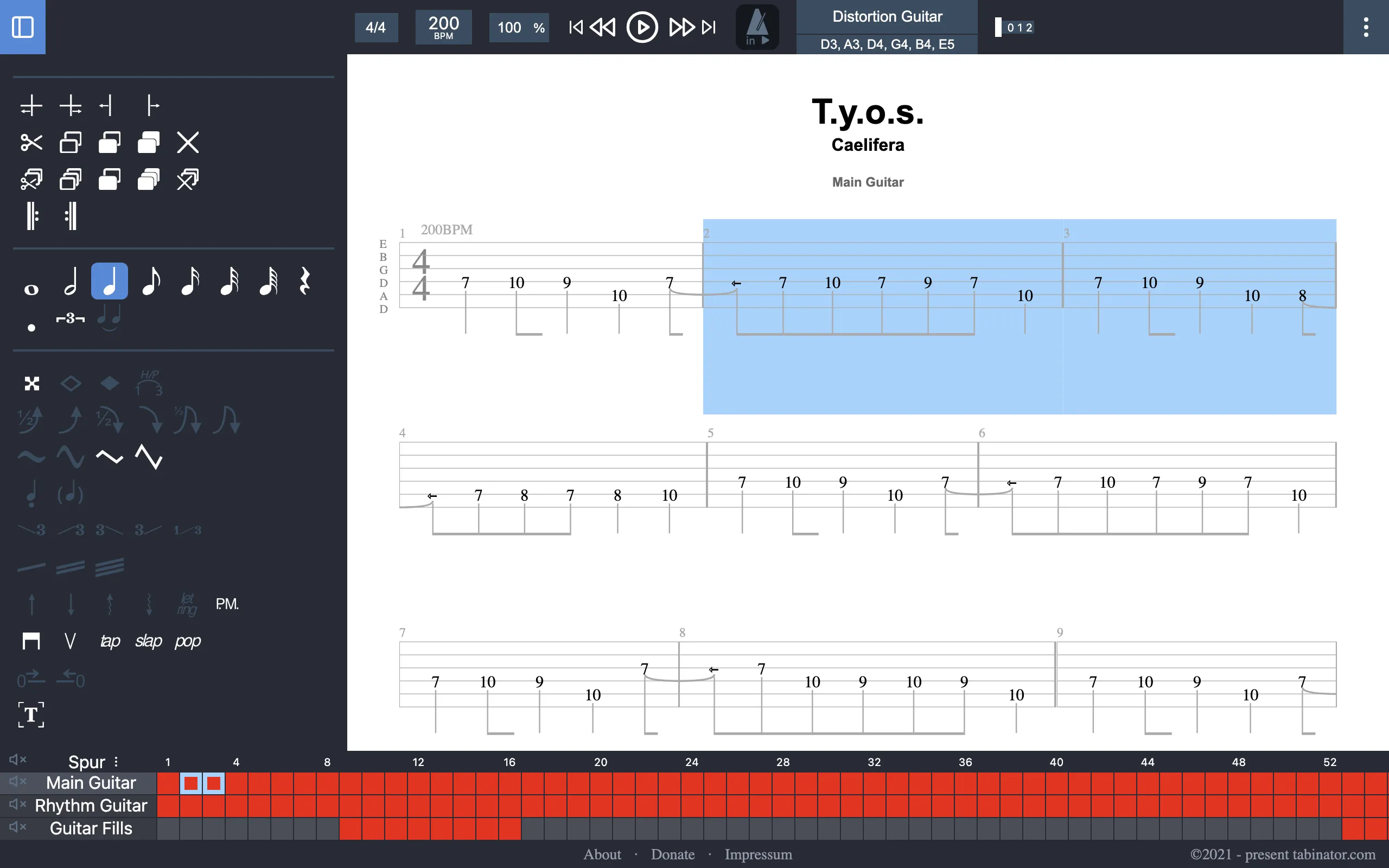
Now start playback. Tabinator plays the selected bars over and over until you stop with the spacebar or the pause button.
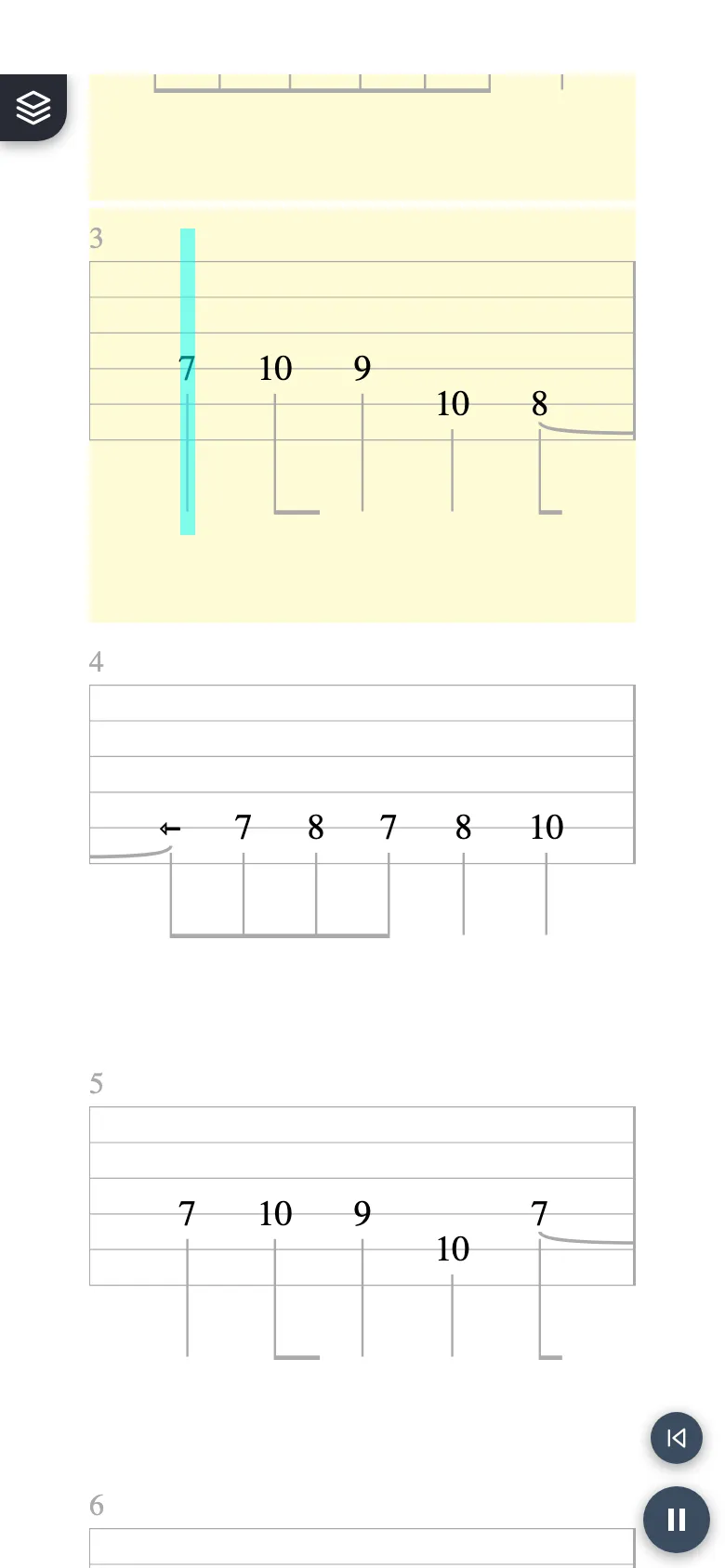
The best way to practice a tricky passage is in a loop. Start by selecting one or more bars: press and hold a bar until selection mode starts. The selection begins at that bar. Then tap another bar to extend the selection up to it. Here, bars 2 and 3 are selected:
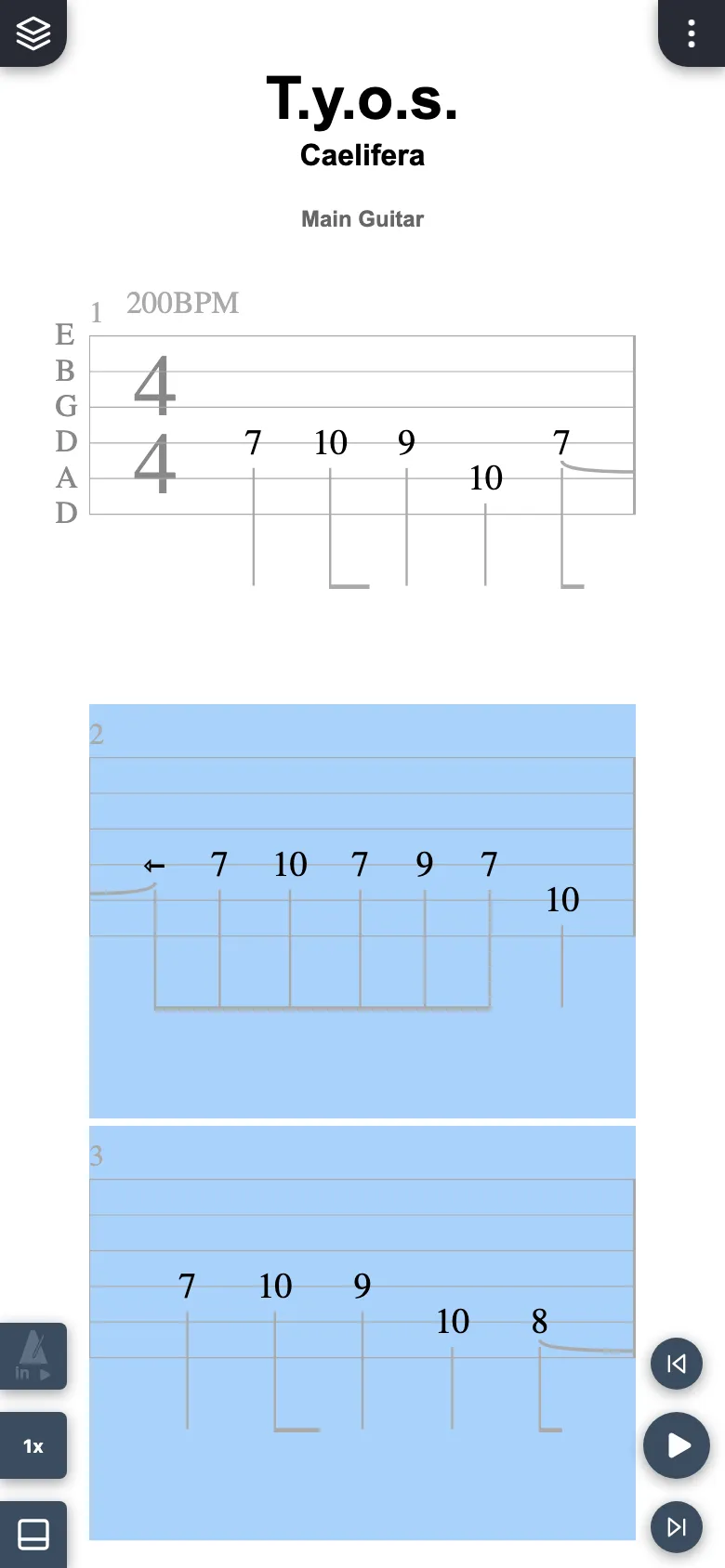
Now start playback. Tabinator plays the selected bars over and over until you tap the pause button.
Turn on the metronome
You'll find the metronome in the toolbar at the top. Each click switches to the next mode: off → count-in → while playing → count-in and while playing.
You'll find the metronome as a button on the left edge of the screen. Each tap switches to the next mode: off → count-in → while playing → count-in and while playing.
Well done!
You now know the basics of playing songs. With a slower speed, the metronome and a loop, you can practice any song at your own pace.
Get started now
Launch Tabinator directly in your browser – 100% free, no ads, no sign-up required.
Open Tabinator